> For the complete documentation index, see [llms.txt](https://wiki.project-fika.com/llms.txt). Markdown versions of documentation pages are available by appending `.md` to page URLs; this page is available as [Markdown](https://wiki.project-fika.com/advanced-features/nat-punching/self-hosted-nat-punch-server.md).
# Self-hosted NAT punch server
Step-by-step process for setting up a dedicated SPT server with NAT punching.
## Requirements
* The SPT server must be hosted on an externally accessible machine, such as a VPS.
* Both the raid host and any players connecting via NAT punching must use a router that supports Full-Cone NAT, as this type is required for proper connectivity. You can check your router’s NAT type by searching online for your specific router model.
## Limitations
The NAT punch server only facilitate connection when joining a raid. It does not allow to join the SPT server itself.
## Notes
This guide covers the installation process for Windows only. Linux is not covered in this article but the principle is the same. Check out our dedicated Linux channel in our Discord for more information.
## Installation
{% stepper %}
{% step %}
### Set up a public Windows-based server
A publicly accessible server is required for NAT punching. It is recommended to rent an affordable Windows-based VPS to host the `SPT Server`; providers listed on [**LowEndBox**](https://lowendbox.com/) are a good starting point for low-cost options.
If you are uncertain whether NAT punching will work with your network configuration, you can provision a temporary VPS using [**Kamatera**](https://www.kamatera.com/), which offers hourly billing — making it a cost-effective solution for testing.
{% endstep %}
{% step %}
### Download the latest `SPT` standalone release
Obtain the latest standalone `SPT` release [here](https://github.com/sp-tarkov/build/releases/). The download link will be in the release notes.
{% endstep %}
{% step %}
### Extract the `SPT` archive in a new empty `SPT` folder
{% endstep %}
{% step %}
### Download the latest `Fika-Server` standalone release
Obtain the latest `Fika-Server` standalone release [here](https://github.com/project-fika/Fika-Server-CSharp/releases).
{% endstep %}
{% step %}
### Extract the Fika-Server archive in the root of your `SPT` installation folder
{% endstep %}
{% step %}
### Start `SPT.Server.exe` to generate the Fika Server configuration file
`SPT.Server.exe` is located inside the `SPT` sub folder of your `SPT` installation folder.
{% endstep %}
{% step %}
### Wait for `SPT` server to be fully loaded then close it
Close `SPT` server when you see `Server has started, happy playing`.
{% endstep %}
{% step %}
### Enable NAT Punching in Fika Server
This setting controls if the `Nat Punch Server` should run on your SPT server.
* Navigate to `SPT\user\mods\fika-server\assets\configs`.
* Open `fika.jsonc` with your preferred text editor software (`Notepad++` is recommended).
* Find the `natPunchServer` section and set `enable` to `true`.
* Save and exit the text editor.
{% endstep %}
{% step %}
### Start `SPT.Server.exe`
Validate that the `Nat Punch Server` successfully loaded.
{% endstep %}
{% step %}
### Validate your network configuration
Make sure that the following ports are port forwarded and opened in your server firewall:
* 6969 TCP (SPT Server)
* 6790 UDP (Nat Punch Server)
{% endstep %}
{% step %}
### Start `SPT.Launcher` on your computer
We assume you already have a working Fika installation or you know how to set up one. If you don't, click [here](/installing-fika/installation.md) for Fika installation steps.
{% endstep %}
{% step %}
### Configure your server IP in `SPT Launcher`
`SPT Launcher` needs to connect to the `SPT` server on your VPS/public server. Other players will also need to do the following steps.
* Click the `Settings` button at the top right corner.
* Check the `Developer Mode` box then enter your server IP address in the URL box. Do not remove `https://`, do not add a slash at the end.
* Press the arrow key at the top right corner to save your settings.
{% endstep %}
{% step %}
### Start the game
Press `Start Game` to launch the game.
{% endstep %}
{% step %}
### Enable NAT Punching in Fika (raid host only)
This setting indicates that any player connecting to your raid must use NAT punching. It is a client-side setting, meaning it only applies to **you**, the raid host. Other players do **not** need to enable this setting unless they intend to host a raid without port forwarding.
* Press F12 to bring up the configuration manager.
* Check the `Advanced settings` box.
* Check the `Nat Punching` box to enable NAT punching.
{% endstep %}
{% step %}
### Host a raid and wait for other players to connect
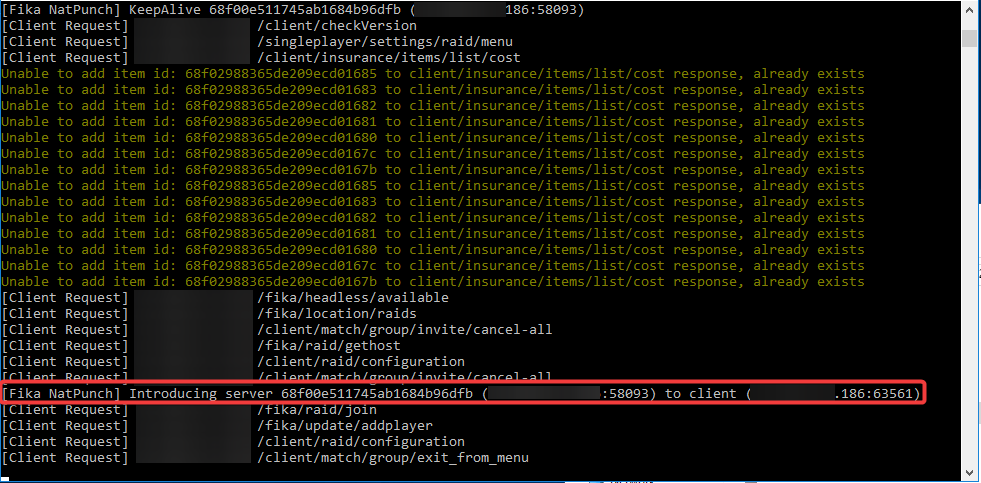
Navigate the menus and host a raid. You should see that your server was added to the Nat Punch server list in the `SPT Server` console.
The `Nat Punch Server` will introduce the external IP address of your computer to players joining your raid.
{% endstep %}
{% step %}
### Start the raid when all players are connected
Start the raid when all players are connected and ready to go.
{% endstep %}
{% endstepper %}
## Headless client
To enable NAT punching for the `headless client`:
* Make sure you followed all the steps above.
* Navigate to `BepInEx\config` of your `headless client`.
* Open `com.fika.core.cfg` with your preferred text editor.
* Search for the parameter `Use NAT Punching` and set to `true`.
* Save and close the text editor.