> For the complete documentation index, see [llms.txt](https://wiki.project-fika.com/llms.txt). Markdown versions of documentation pages are available by appending `.md` to page URLs; this page is available as [Markdown](https://wiki.project-fika.com/faqandguides/headless-client-faq-and-common-issues.md).
# Headless Client FAQ and Common Issues
### :question:FikaHeadlessManager displays an error on start
* **Error**: **Could not reach SPT.Server at \ Please ensure SPT.Server is running and accessible.**
* FikaHeadlessManager is unable to verify the server is running.\
\
Check that SPT.Server is running and accessible using your SPT.Launcher; verify that you can connect and launch your game like normal.\
\
In the root folder of your headless install, find `HeadlessConfig.json` and open it in a text editor. Verify that the URL is correct and is pointing to where the headless client can access SPT.Server.
* **Error: ****Could not access \ Ensure Fika Server mod is installed. Please review the installation process in the documentation.**
* FikaHeadlessManager is unable to verify that Fika is fully installed on the server to which it is connecting.\
\
Ensure you have followed all the steps for [Installing Fika](/installing-fika/installation.md) in the folder where you are running SPT.Server.
***
### :question:We cannot connect to a headless client hosted raid or we are getting an error about ensuring ports are open
The headless client needs to be able to accept incoming connections on the raid port configured in `/BepInEx/config/com.fika.core.cfg` -> `Network` -> `Port` (default 25565/udp).
If you are port forwarding, the port needs to be forwarded to the PC where the headless client is running. If you are using a VPN, the PC where the headless client is running must be connected to the same VPN and both `Force IP` and `Force Bind IP` must be configured in `com.fika.core.cfg`.
See [this FAQ entry](/faqandguides.md#if-you-are-using-headless-client) for more information.
***
### :question:How do I change the name of the headless client that is displayed when hosting a raid?
1. Open [fika.jsonc](/fika-configuration/server.md) in a text editor.
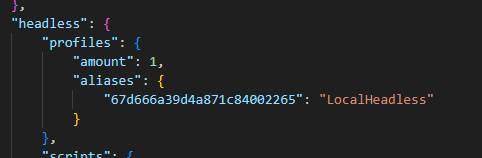
2. Find the `headless` -> `profiles` -> `aliases` section.
3. Add one line per headless client in the format `"ID": "Alias"`
1. The `ID` is the profile ID of the headless character profile for which you wish to change the name.
2. You can find the profile ID by opening `HeadlessConfig.json` in a text editor.
3. If you are adding multiple profiles, each line needs to end in a comma `,` except the last line.
4. Save changes to `fika.jsonc` and close the text editor.
5. Restart SPT.Server.
***
### :question:Does performance of the headless client matter?
Yes, to a point. Performance of the headless client matters insofar as the headless client must stay **above 30 FPS** during all raid scenarios.
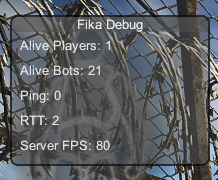
To test for this, connect to a headless client hosted raid and, once you have spawned in, open the in-game console on your game client (default key is `~`), enter command `debug t`, and then press Enter.
This will open a debug window that shows the amount of bots spawned, your ping/RTT, and also the 'Server FPS' which is the FPS of the headless client. Play through the raid, get into fights, throw grenades, etc, and keep an eye on the Server FPS value. As long as it stays in the 30s or above, you should not experience any issues.
If it is dipping into the 20s or teens, you will likely experience issues with AI acting strange and physics objects (such as grenades) teleporting or moving in slow-motion. Reduce the number of bots spawned or the number of mods in use to bring performance back up above the important 30 FPS threshold.
If performance dips below 30 FPS even with no other mods, your PC is likely not strong enough to host a headless client. If you see the FPS value stuck at 59, that is expected behavior and is not indicative of a problem.
***
### :question:I get an error about "A patch in SPT.CustomPlugin FAILED"
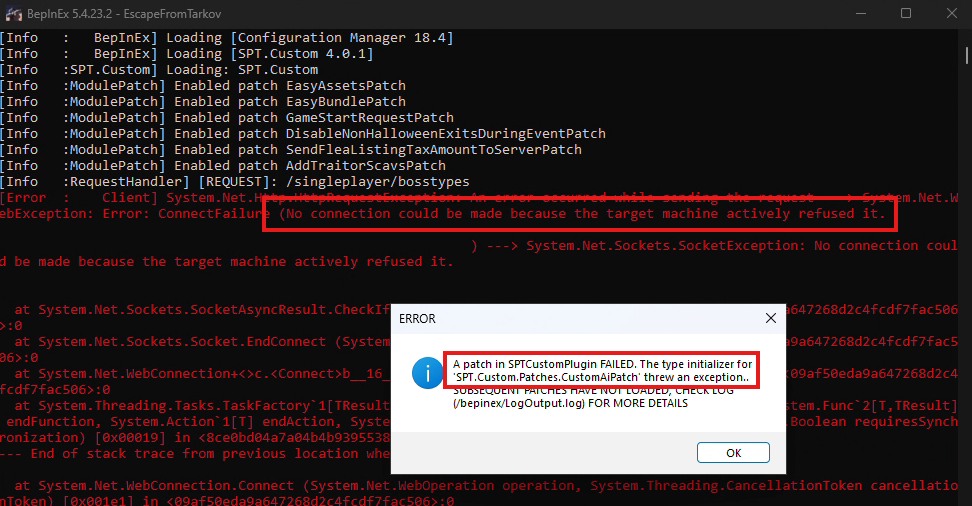
The error `A patch in SPTCustomPlugin FAILED. The type initializer for 'SPT.Custom.Patches.CustomAiPatch'...` should mostly be avoided with latest versions of FikaHeadlessManager. Make sure you have the latest version by re-running Fika-Installer in your headless client install folder and choosing `Advanced` -> `Update Fika Headless`.
If you are still getting this error even with the latest FikaHeadlessManager, likely something is blocking your headless client `EscapeFromTarkov.exe` specifically from connecting to the server, such as a VPN or firewall.
{% hint style="danger" %}
#### Ensure SPT.Server is running and able to accept connections
Test connectivity using SPT.Launcher: make sure you can launch the game and reach your stash and access traders.
If your SPT.Launcher is not able to connect to your server, figure out why and address that issue first. If the server is currently running but SPT.Launcher cannot connect, revisit the [Hosting a Fika server](/hosting-a-fika-server/choose-your-hosting-method.md) instructions.
**NOTE**: the headless client **does not replace SPT.Server**. The backend server is required to be running at all times.
{% endhint %}
If you have already generated `HeadlessConfig.json` and it is in the root directory of your headless install, open it in a text editor and change the URL to match how you connect to your server. This may include a VPN IP or the public IP of the server. Save the changes to the file and restart `FikaHeadlessManager.exe`
If you have not generated `HeadlessConfig.json` or the headless profile yet, revisit the [steps for installing the Headless client](/advanced-features/headless-client/remote-headless-client.md) and pay close attention to the [step about editing `fika.jsonc`](https://wiki.project-fika.com/faqandguides/pages/0z3pofKBt94d9uQqyEir#optional-set-url-in-fika.jsonc)